


Looking for feedback on new sig ...


Thread Starter
1st Gear Member
Joined: Nov 2006
Posts: 109
From: Tempe, Arizona
 Looking for feedback on new sig ...
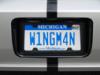
Testing a new signature I just built ... would be interested in feedback ... I've exaggerated the saturation, since the original image was flat ... I know I've gone beyond Redfire ... comments?????
5th Gear Member
Joined: Jun 2006
Posts: 3,792
From: Sterling Heights, MI
RE: Looking for feedback on new sig ...
ORIGINAL: VSTNG
Testing a new signature I just built ... would be interested in feedback ... I've exaggerated the saturation, since the original image was flat ... I know I've gone beyond Redfire ... comments?????
Testing a new signature I just built ... would be interested in feedback ... I've exaggerated the saturation, since the original image was flat ... I know I've gone beyond Redfire ... comments?????

★★★★★
Joined: May 2005
Posts: 10,200
From: Banned Camp (Counselor)
RE: Looking for feedback on new sig ...
that looks really good. adjusting the saturation is definitely a positive. i do that on just about every picture i take.
i think my only criticism would be to put a shadow under the car, 1 so it doesnt look like its floating, and 2. so you can help out the cutout of the wheel. youre not always gonna get a perfect cut around a wheel, and adding a shadow will definitely greatly improve the look of it.
i think my only criticism would be to put a shadow under the car, 1 so it doesnt look like its floating, and 2. so you can help out the cutout of the wheel. youre not always gonna get a perfect cut around a wheel, and adding a shadow will definitely greatly improve the look of it.
6th Gear Member
Joined: Jun 2006
Posts: 6,605
From: Orlando, FL
RE: Looking for feedback on new sig ...
ORIGINAL: VSTNG
Thanks. I've corrected the white color, and added a very small drop shadow. Now tell me what you mean by stroke. Thanks.
Thanks. I've corrected the white color, and added a very small drop shadow. Now tell me what you mean by stroke. Thanks.
★★★★★
Joined: May 2005
Posts: 10,200
From: Banned Camp (Counselor)
RE: Looking for feedback on new sig ...
ok well first off, drop shadows are a no no on cars
make a new layer under the car layer, and use the brush tool and make a black blotch under the car resembling a car shadow, then adjust the opacity so it looks like the shadow is on the site page, and erase/smudge it until youve gotten it to look good.
to add a stroke, select the background layer, and go to the blending options and click the one that says stroke.
adjust the positioning to inside, outside, or center, depending on where you need it to be to show up (good).
and obviously you can adjust the size, color, opacity, etc.
make a new layer under the car layer, and use the brush tool and make a black blotch under the car resembling a car shadow, then adjust the opacity so it looks like the shadow is on the site page, and erase/smudge it until youve gotten it to look good.
to add a stroke, select the background layer, and go to the blending options and click the one that says stroke.
adjust the positioning to inside, outside, or center, depending on where you need it to be to show up (good).
and obviously you can adjust the size, color, opacity, etc.
6th Gear Member
Joined: Jun 2006
Posts: 6,605
From: Orlando, FL
RE: Looking for feedback on new sig ...
for the way i make shadows, this tends to be easier for me:
select the layer the car is on and go to select>load selection so it puts a marquee around the car
then make a new layer under that one and fill it with black
free transform/warp the selection till its under the car and looks like a shadow (alter opacity/fill also)
select the layer the car is on and go to select>load selection so it puts a marquee around the car
then make a new layer under that one and fill it with black
free transform/warp the selection till its under the car and looks like a shadow (alter opacity/fill also)